
Quick Start
Learn how to import audio and video files into Quiet Typist, batch transcribe them offline, and review transcripts with timestamps and speaker labels.
Quiet Typist is transcription software that also works on offline and air-gapped networks. Use it to turn meetings, interviews, and lectures into text. It batch transcribes files offline, and processing doesn't depend on any internet service, so sensitive data is less likely to leave your hands. For privacy- and security-conscious teams, it's a safer way to build up a text archive.
1. Import files
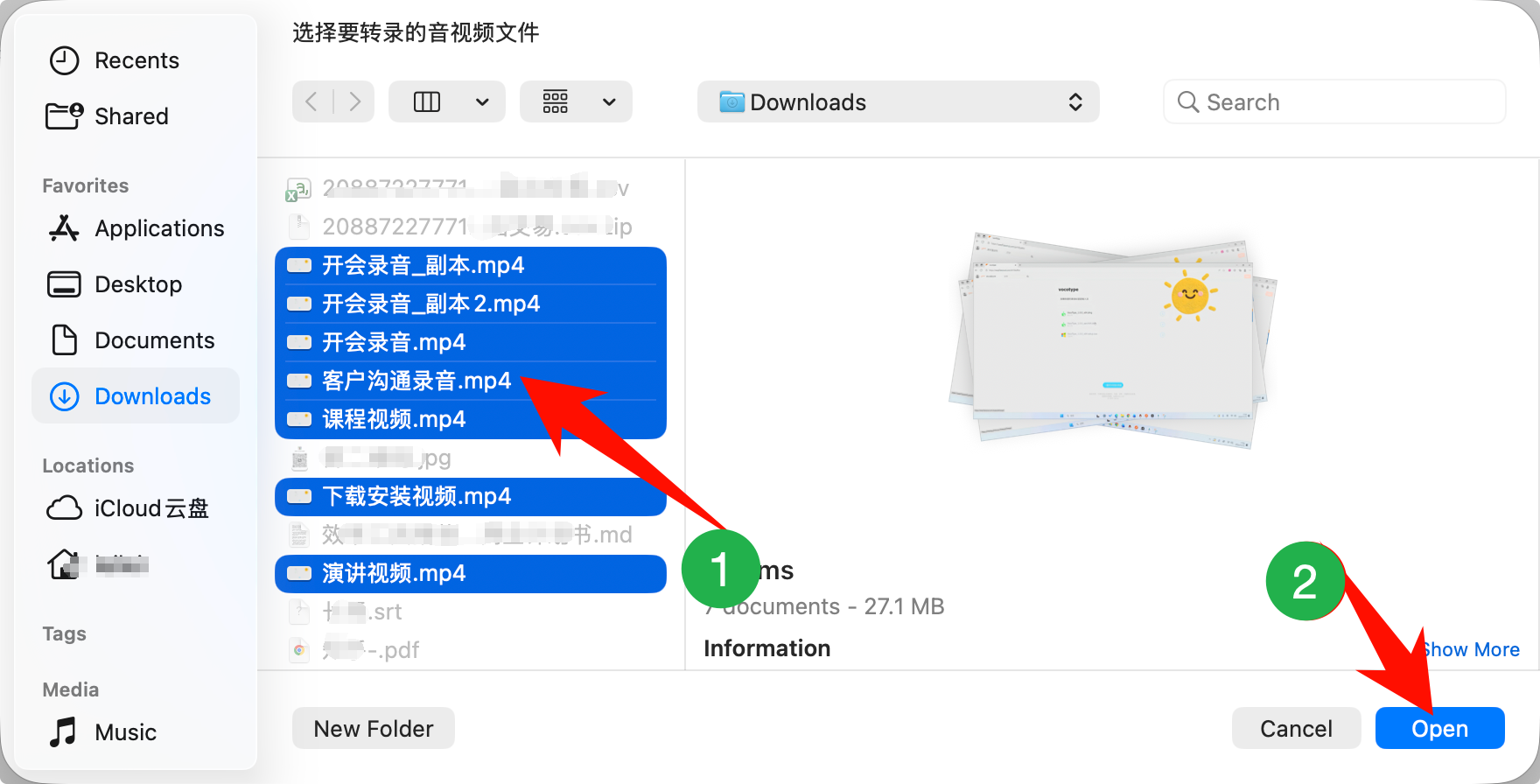
Open Quiet Typist, click the import area, and choose the audio or video files you want to transcribe.
- Audio: mp3, m4a, wav, wma, aac, flac, ogg, opus, amr, awb, aiff, aif, aifc, caf, m4b, mka
- Video: mp4, mov, mkv, avi, flv, webm, m4v, 3gp, ts, mts, m2ts, mpg, mpeg, vob
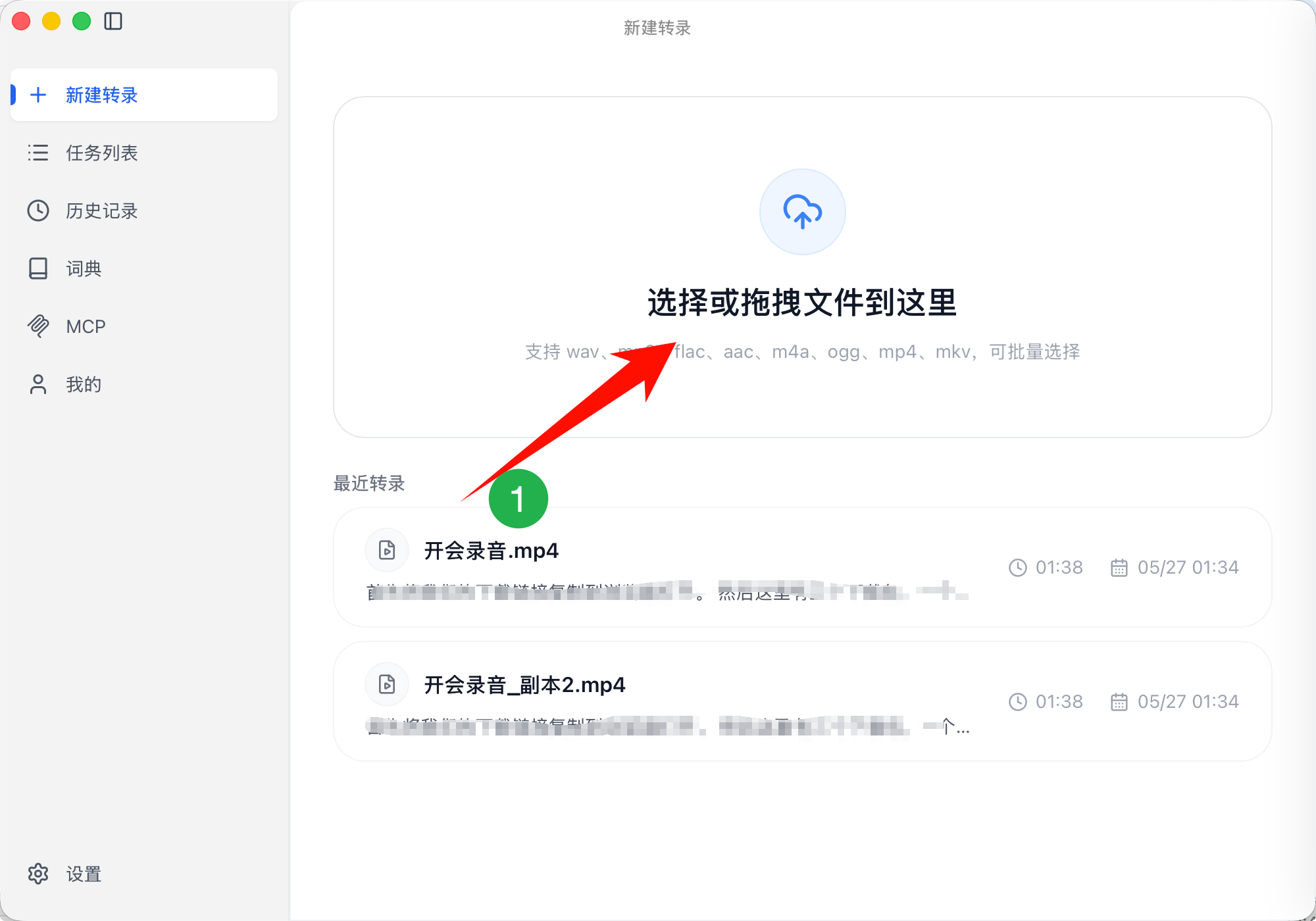
To process several files at once, select them all and import them together.
2. Start transcription
Once the files appear in the task list, start transcription.
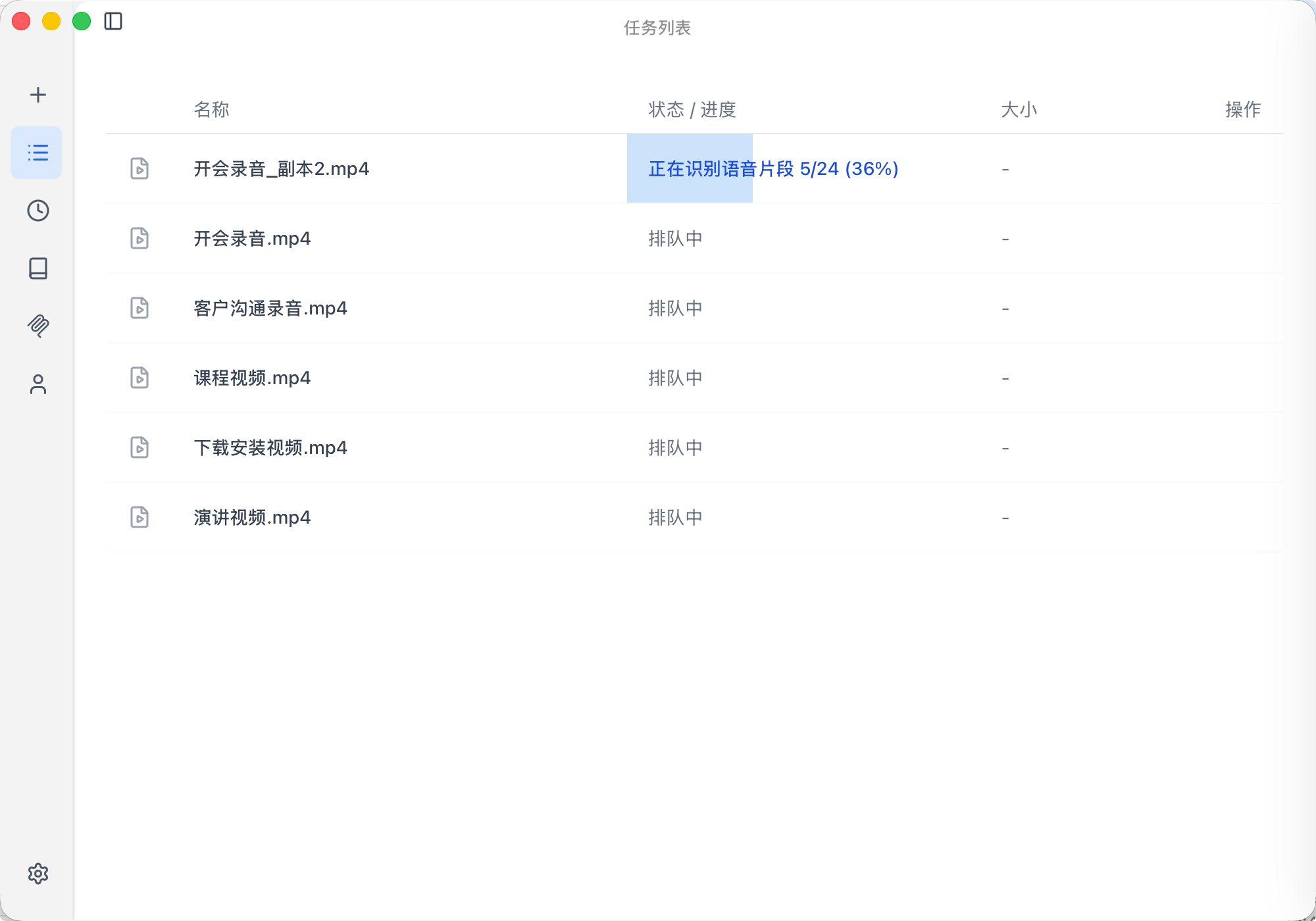
Keep the app running while it transcribes, and wait for each task to finish.
3. View the results
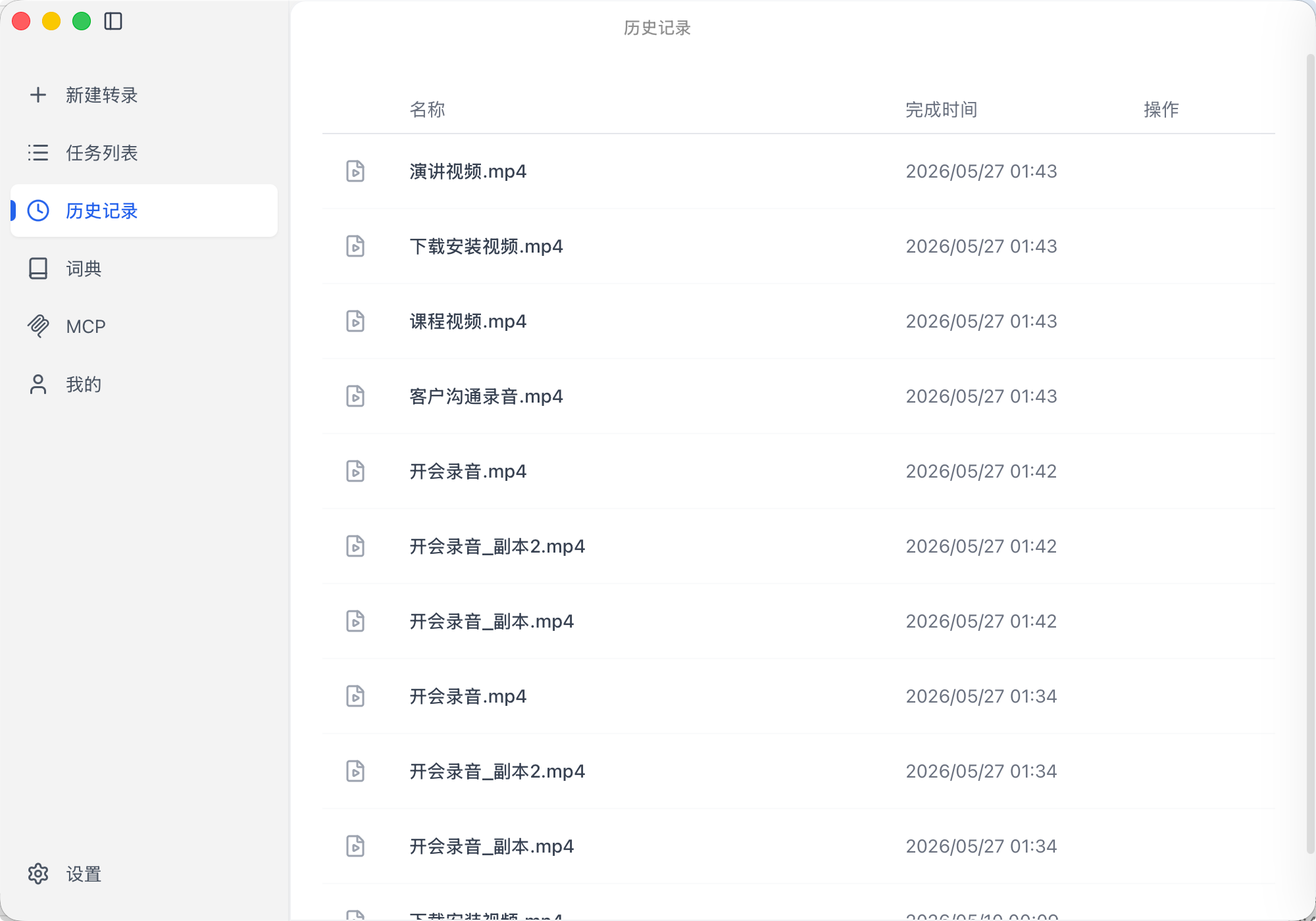
When transcription finishes, open the task to see the generated transcript.
If the recording has more than one speaker, use the timestamps and speaker labels to find what you need quickly.
Learn more
- Batch transcription: import multiple audio and video files at once and have them transcribed automatically.
- Meeting transcription: sort out multi-speaker discussions with speaker labels and timestamps.
- Generate subtitles from video locally: create first-draft subtitles for courses, interviews, and unreleased videos.